 Continuum
Continuum guides
A little help.
Then back to your story.
Import your books, install the speech model, link text and audio, scan a printed page and continue across devices with iCloud.
We couldn't find that guide.
Try another word or browse all topics. If you're still stuck, get in touch.
Contact support ↗Getting started
Import your first bookAn EPUB, an audiobook or both.
You need your own legally obtained, DRM-free files. Continuum doesn't include a book catalogue.
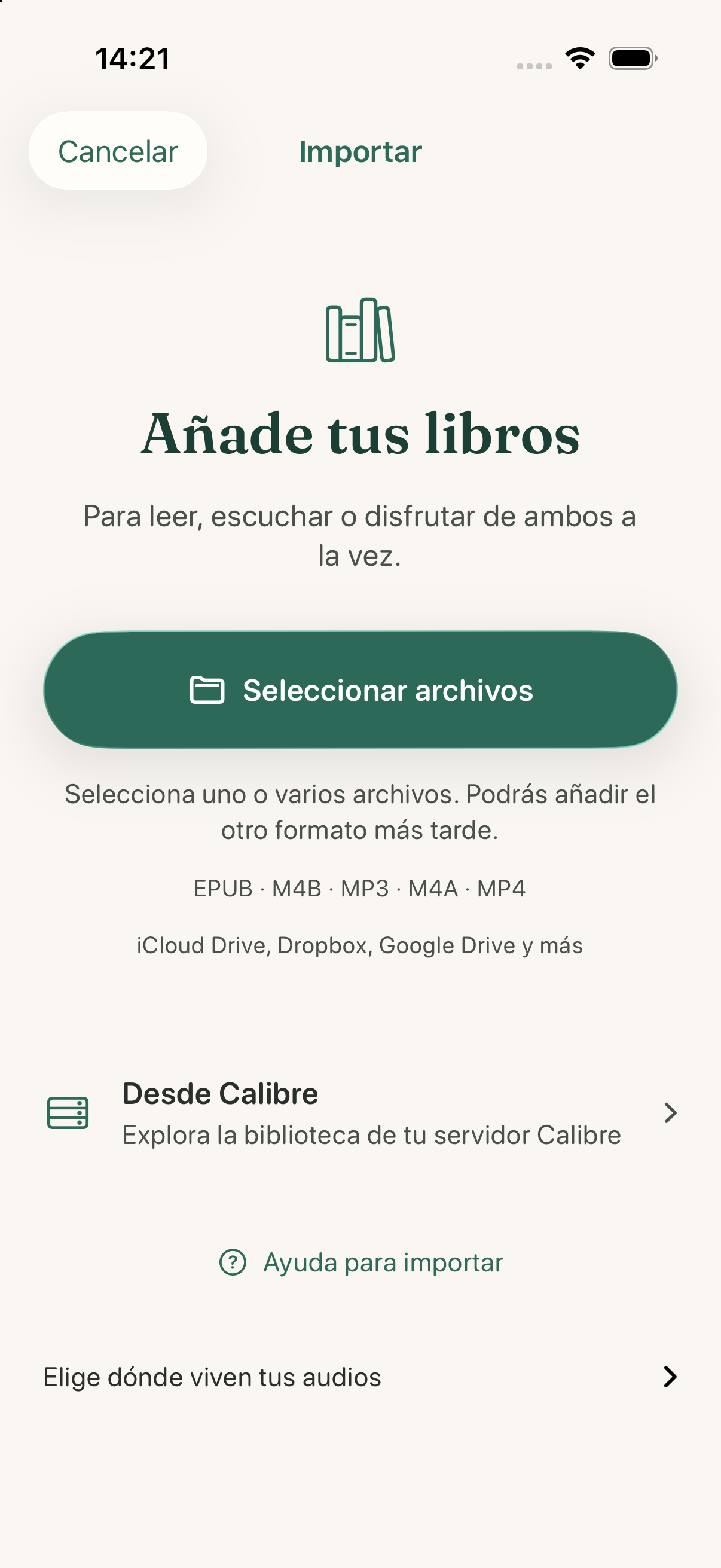
- Open Import and choose your files in Files. You can access iCloud Drive and any providers available there.
- Choose an EPUB to read or an M4B, MP3 or M4A audio file to listen to.
- If you choose an EPUB and audio, confirm whether they belong to the same book. You can also import them separately.
- Open the book's details in your library and tap Read, Listen or Immersive, depending on the formats you've added.
Only have one format? You can start with it and add the other later from the book's details. Continuum doesn't remove DRM from protected files.
Bring books from CalibreAccess your server's catalogue.
- In Calibre, open Connect/share → Start Content server.
- Connect your iPhone or iPad to a network where you can access that server.
- When importing in Continuum, choose From Calibre and enter your server's address.
- Browse the catalogue and download the book. You can also add a missing format from the book's details.
Can't connect? Check that the server is still running, the address is correct and your device can reach it on that network.
Install and manage the speech modelDownload, status, storage and retries.
The model helps locate your position more precisely between the EPUB and the narration. It downloads with your confirmation and processes audio on your device.
- With an internet connection and free storage, open Settings → Speech model in Continuum.
- If you see “Not installed”, tap “Download”. The current download is about 146.7 MB; we recommend Wi-Fi.
- Wait until the status changes to “Ready” and shows the installed size. Then return to your book and open Immersive.
- If you see “Couldn't download”, check your connection and free storage, then tap “Retry”.
If you chose “Not now” when offered the download, you can install it later from this screen. You don't need a model for each book; install it on each device where you want to use it.
Once installed, this model works offline. Tapping “Delete model” frees its storage; you will need to download it again to use it later.
The model improves positioning; it doesn't resolve differences between editions or guarantee that every book can sync. You don't need it to read an EPUB or listen to an audiobook separately.
Prepare immersive reading ↗Reading and listening
Read and adjust the pageFonts, background and chapter navigation.
- Open the details of a book with an EPUB and tap Read.
- In the reader, open aA to adjust the font, size, margins and background. To use your own font, tap Import font and choose your TTF or OTF file.
- Use the arrows at the bottom to change chapters, or open the contents to choose one.
- To find a phrase or a name, search within the book and open the result you want.
You can read without an audiobook. Imported fonts stay on the device where you add them.
Listen to an audiobookChapters, speed and sleep timer.
- Open the details of a book with audio and tap Listen.
- Start playback. Open the contents to choose a chapter, or use the arrows to move to the previous or next one.
- Adjust the speed and, if you like, turn on the sleep timer in the player.
You don't need an EPUB to listen. To listen offline, download the audio to that device before you go.
Keep listening with CarPlay ↗Set up immersive readingMatch the EPUB with the narration.
You need an EPUB and audiobook of the same book, in corresponding editions, with chapters in both files.
- Add both formats to the same book entry and open Immersive.
- Let Continuum match the chapters and find your place. The first setup may take a few minutes and require a model download.
- If the app asks you to review the matches, check the chapter links. You can also adjust them manually.
- Start playback: the highlight follows the narrated passage. In the reader settings, you can turn highlighting off and choose its colour: turquoise, amber, green, pink or purple.
Text and audio don't match? Check the editions and linked chapters. Compatibility depends on the files; continuous audio without chapters doesn't sync automatically with reliable results.
Install the speech model ↗ Switch from reading to listening ↗If the EPUB and audio don't matchCompatibility, chapters and partial syncing.
- Check that the text and narration are the same work, language and edition. An abridged or adapted version may omit or change passages.
- Review the linked chapters: a foreword, introduction or different chapter structure can shift the match. Adjust the links manually when needed.
- Check Settings → Speech model to see whether the model is ready. Installing it improves positioning, but doesn't make two different editions equivalent.
- Try the chapter you want to use. A linked chapter doesn't guarantee reliable matches throughout the book.
Syncing may be partial or unavailable depending on the files' structure and content. Continuous audio without chapters doesn't sync automatically with reliable results. You can keep reading and listening separately.
Switch from reading to listeningContinue in the other format.
- Add the EPUB and its audiobook to the same book entry. Set up Immersive to match their chapters.
- While reading, tap the headphones icon to go to the audio.
- While listening, tap the book icon in the player to go to the text.
Continuum saves your position in each format. Matching text and audio depends on both being linked correctly.
Listen in the car with CarPlayPrepare the audio on your iPhone before you go.
- Import the audiobook and check on your iPhone that the audio is downloaded and plays.
- Connect your iPhone to a CarPlay-compatible car or system.
- Open Continuum in CarPlay and choose an audiobook from your library.
- Use the playback controls and the available chapter list on the car's screen.
No books showing? Check that you've added audio, not just an EPUB, and that the files are available on your iPhone. If CarPlay asks you to unlock Continuum, complete the purchase or restore it on your iPhone before starting your journey.
Create notes and bookmarksSave a passage, a note or your place.
- To annotate a passage, select the text in the reader and choose Highlight. In the highlighting sheet, you can choose a colour and add a note.
- To save your place in the reader, tap the bookmark icon to add one at that point.
- Open the reader's «…» menu to see your saved bookmarks.
- In the player, the bookmark icon opens the list; the «…» menu lets you add one.
With both formats synced, a bookmark can save the text and audio positions.
Continue from a printed pageFind a passage from your physical book.
OCR recognises text on a printed page and searches for it in the EPUB you've already imported. This lets you move from your physical book to digital reading.
- In the reader, open the EPUB corresponding to your physical book.
- In the “…” menu, tap “Scan page” and allow camera access if the app asks.
- Frame a well-lit page with the text in focus. Capture happens when there is enough readable text.
- If several results appear, choose the right passage. If there are no matches, try another page or search manually.
- Continue in the EPUB. If the audio is linked and that passage has a match, you can switch to listening too.
This doesn't convert a whole physical book into an EPUB or create a new file. You need an EPUB containing that passage; results depend on recognition and differences between editions.
Files and devices
Use iPhone, iPad and iCloudWhat syncs and where the files are.
- Check that you're using the same Apple account, with iCloud enabled for Continuum on your devices.
- Connect both devices to the internet and allow iCloud to update the data. Updates aren't guaranteed to be instant.
- On the other device, open the book's details and tap Read or Listen to download the available copy of the format you need.
- If you use your own audio folder in iCloud Drive, connect it in Settings → Audiobook folder on each device.
What can sync
- Library data and reading and listening progress.
- Bookmarks, notes, highlights and links between EPUB and audio chapters.
- Compatible copies of EPUB and audio files, when available in iCloud.
Seeing a book in your library doesn't mean its file is downloaded. Connect external folders on each device; install imported fonts and the speech model separately. Check your files before using them offline.
If the devices don't show the same information ↗If iCloud doesn't show the same information on both devicesTell library data apart from files.
- Check your Apple Account, Continuum's access to iCloud, your connection and available storage in iCloud and on your device.
- If the book appears but won't open, check whether an EPUB or audio copy is available to download. If it comes from an external folder, reconnect that folder on this device.
- If the latest progress or a note is missing, allow both devices to finish syncing before continuing to switch between them.
- If the problem persists, contact support with your device, app version and which data or file is missing. Don't send your Apple password or books.
Syncing data and downloading files are separate operations. Restoring your purchase doesn't download books or install the speech model either.
Recover a file or an archived book ↗Recover a file or an archived bookWhat to check when you can't open it.
- If the book's details show that it's in iCloud, tap Read or Listen to download the file you need.
- If the download fails, check your connection and try again.
- For audio in your own folder, check that the folder is connected on the device and that the file is still available.
- If there's no accessible copy, import your original file again. If Continuum recognises an archived book, it will offer to restore the saved data.
Recovering a file requires an available copy; saved progress doesn't replace the EPUB or audio. Keep your originals.
Purchases
Restore your purchaseAlready bought Continuum or changed devices?
- Check that the App Store is using the Apple account you used to buy Continuum.
- With an internet connection, open Settings in Continuum and tap Restore purchase.
- Wait for Apple to verify the purchase and the app to confirm that it's unlocked.
Still locked? Check your Apple account and contact support with the message you see. Restoring the purchase doesn't download books: your files are recovered or imported separately.
Continuum is free to download and unlocks with an in-app purchase, with no subscription. The purchase doesn't include books.
We're here to help
Got stuck
along the way?
Tell us what you were trying to do, your device and the message you see. You don't need to send the book or your account details.